

Runs on its own
On a schedule, when a system calls it, or when you press Run.
Some work is not a conversation. It is a job that repeats: check this every Monday, look at every new supplier, summarise what came in overnight. An agent is that job, saved once and run by Lucy without you in the chat.
Runs on its own
On a schedule, when a system calls it, or when you press Run.
Every run is a conversation
Open any run to see what it read, what it did and what it produced, like any other answer.
Safe by design
Limits per run, its own sign-ins, and no action that needs your approval unless an admin allowed it.
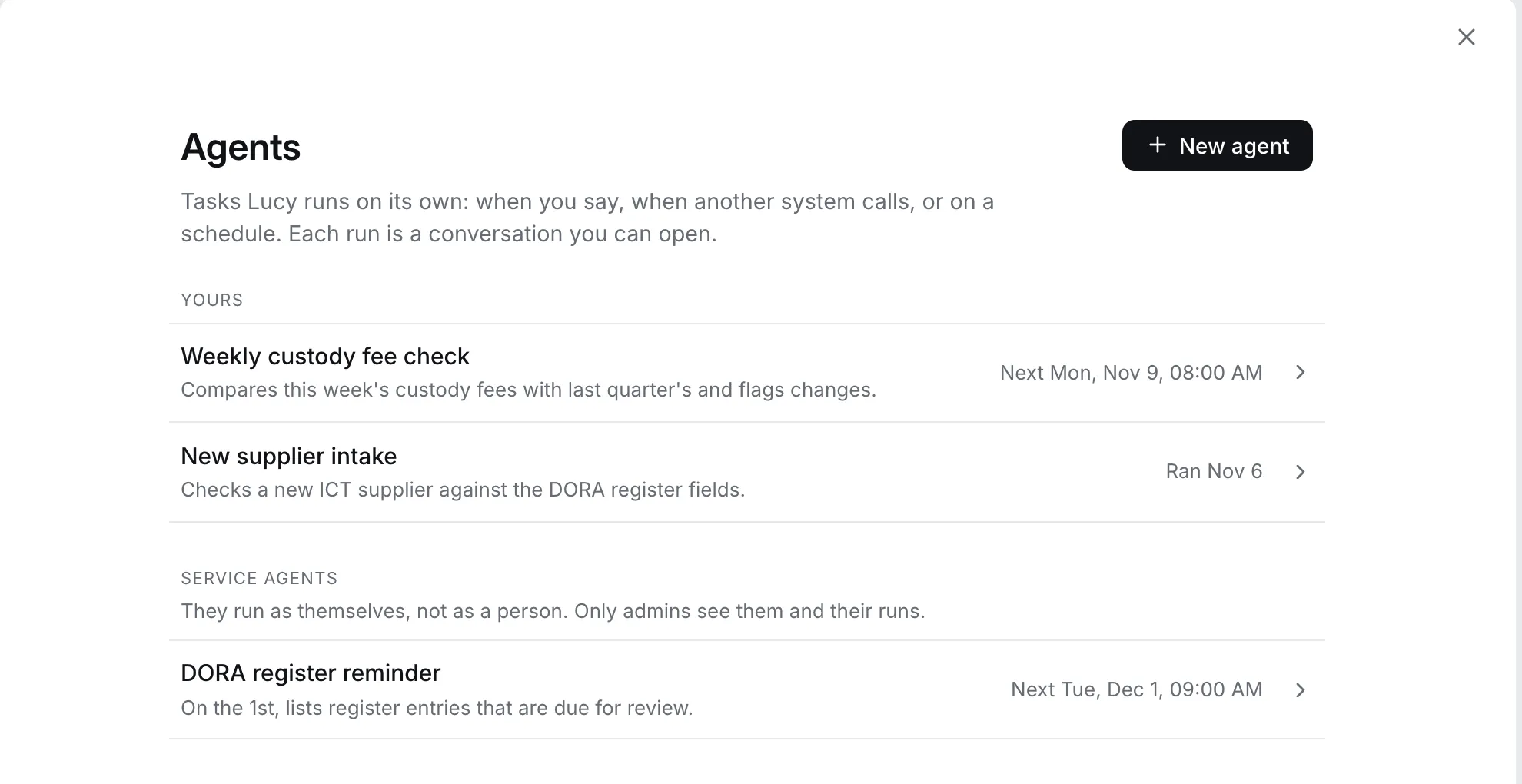
| Team | Agent | What it does |
|---|---|---|
| Finance | Weekly custody fee check | Every Monday at 08:00, compares the week’s fees with last quarter and flags changes |
| Compliance | New supplier intake | When the procurement system posts a new ICT supplier, checks it against the DORA register fields and lists what is missing |
| Compliance | DORA register reminder | On the 1st of the month, lists register entries due for review |
| Operations | Overnight digest | Every weekday at 07:30, summarises unread mail from key clients and drafts replies |
| Risk | Contract expiry watch | Weekly, reads the contracts folder and lists agreements expiring within 90 days |
| HR | Joiner checklist | When HR starts a joiner, prepares the document and account checklist and a welcome email draft |
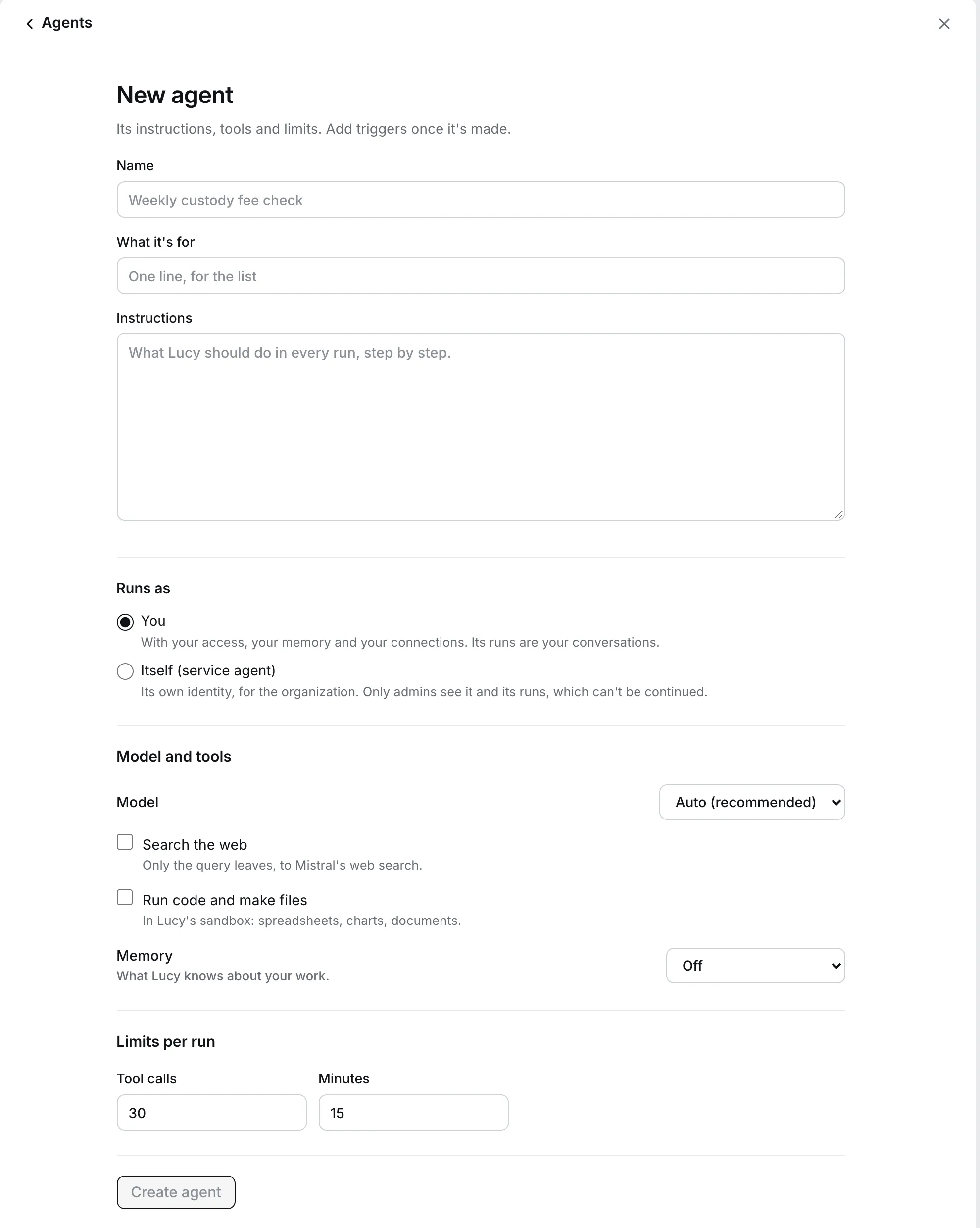
| Option | What it means |
|---|---|
| You | With your access, your memory and your allowance. Its runs are your conversations, and you can continue one yourself. |
| Itself (service agent) | Its own identity, for the organisation. Only admins create it and see its runs, and its runs cannot be continued. |
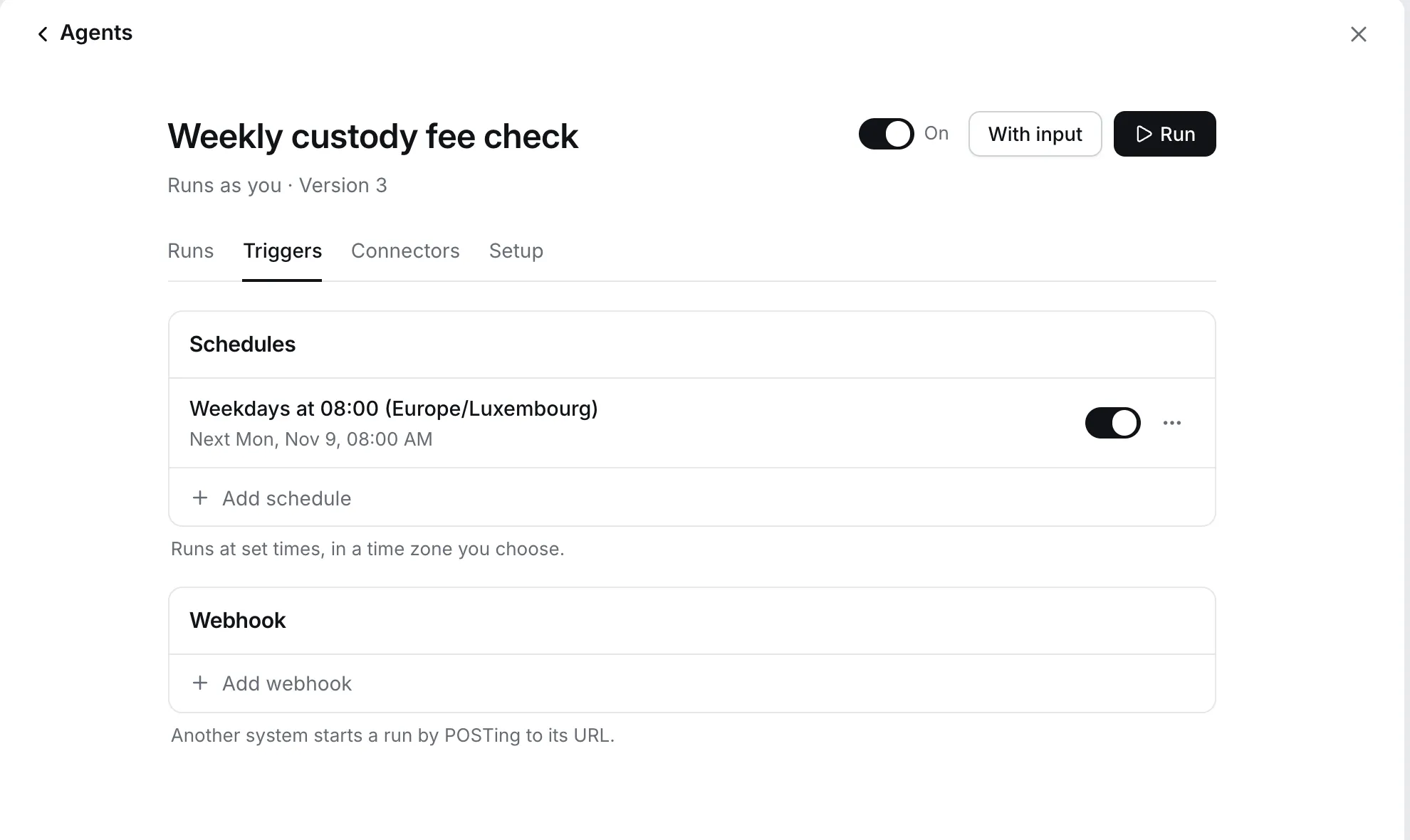
Pick days and a time in a time zone you choose, for example weekdays at 08:00 (Europe/Luxembourg). A schedule can run as often as every 15 minutes. If Lucy was unavailable at the time, it runs once when it is back, not once per missed time.
A webhook gives the agent a private web address. When another system sends a request to it, the agent runs, with the request’s content as input. Use it to start an agent from your procurement tool, your ticketing system or a form. The address is secret, so treat it like a password. You can rotate it. The agent can also send its result to another address when it finishes.
Run starts it immediately. With input lets you give it something to work on, such as a supplier name or a file.
An agent never uses your mailbox or files. It has its own connections.
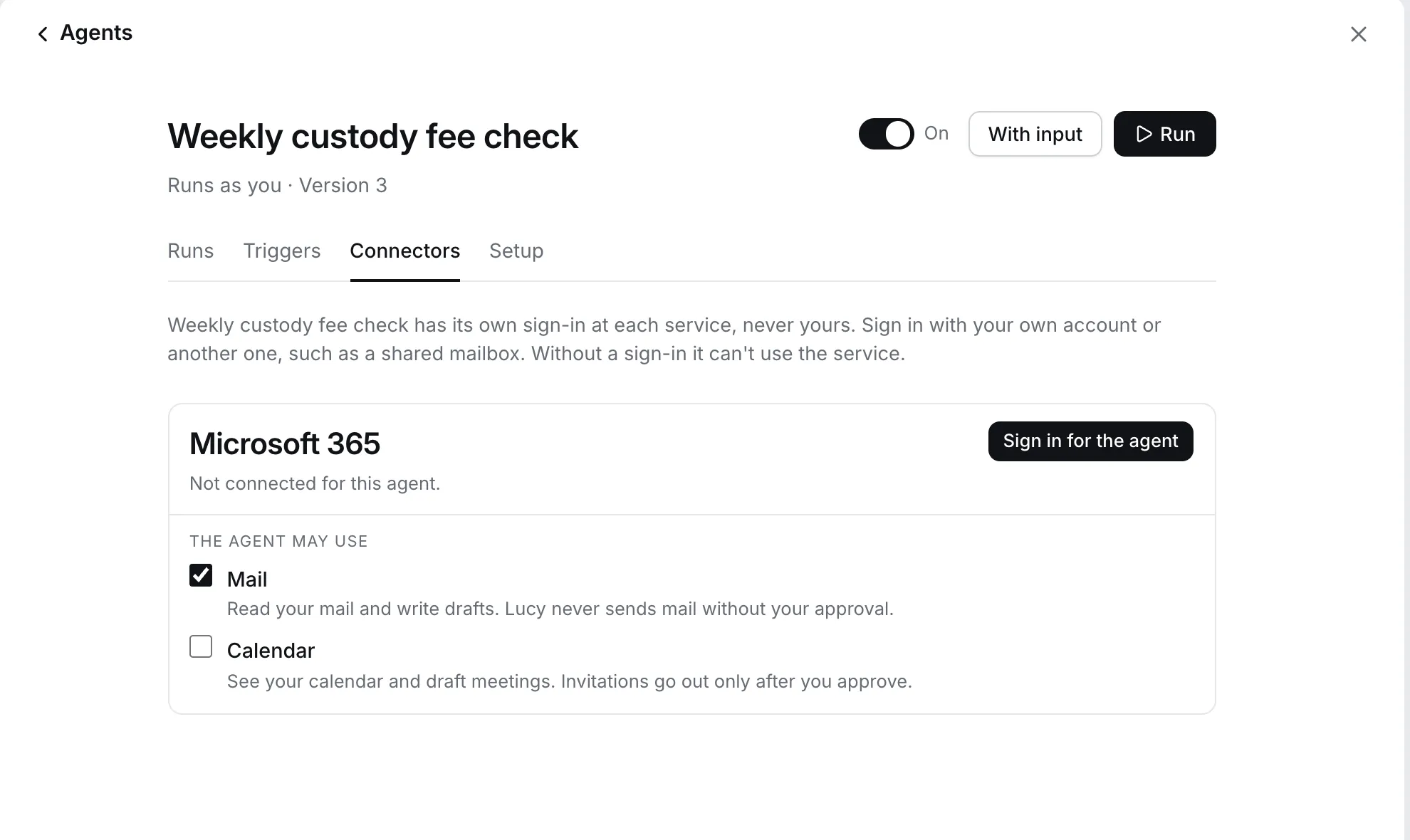
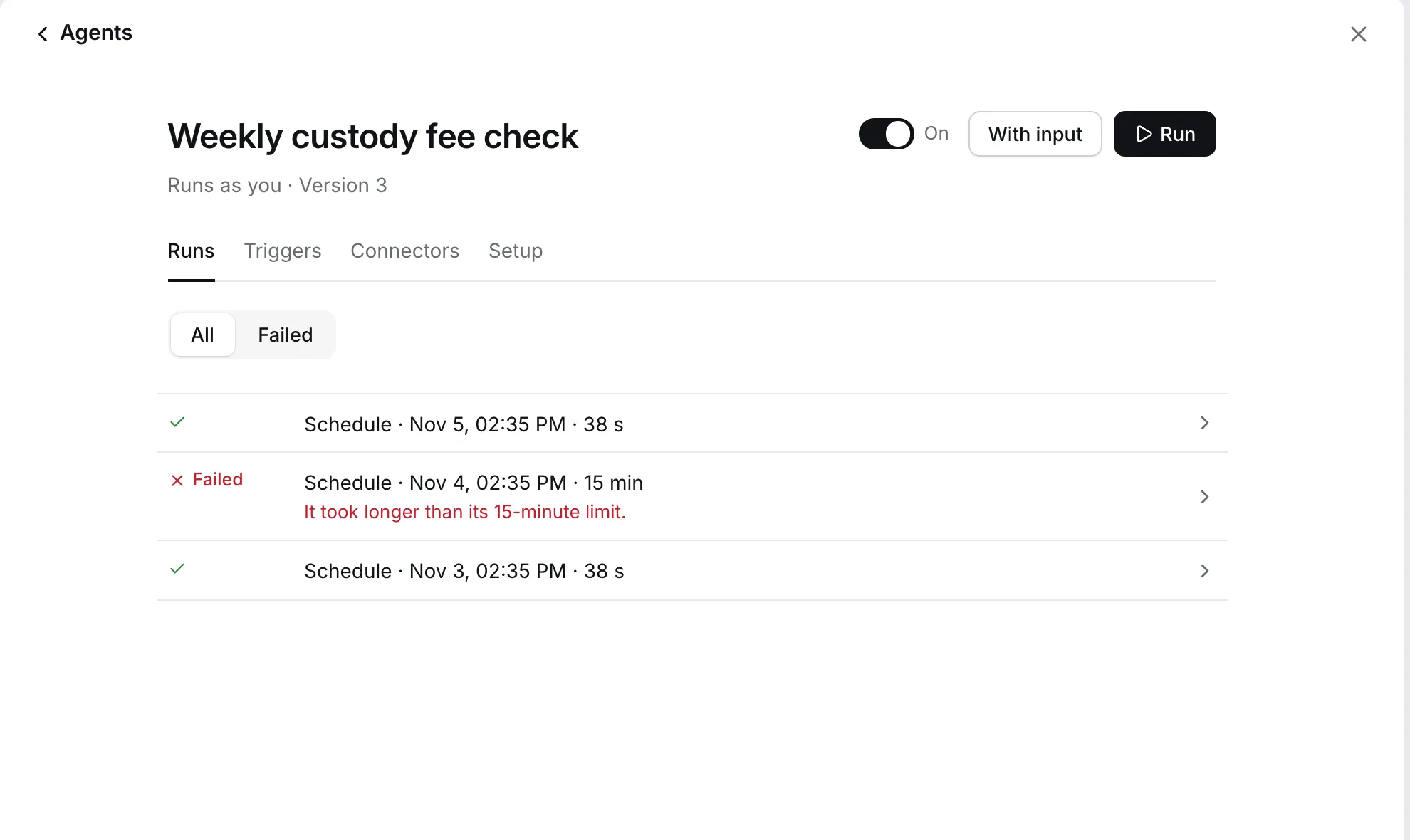
Runs use the allowance of whoever the agent runs as, and your organisation’s budget. An agent that reaches a limit stops, and the run says so. Every run is also capped by its own limits on tool calls and minutes.